
Originally written in 2021. DigitalOcean’s dashboard has changed since, but the steps are the same.
Create a website with WordPress in 10 minutes following this tutorial
In this post, I will show you how to quickly and easily create a website or a blog and get it up and running with a secured socket layer (SSL) – in 10 minutes!
Creating a website or a blog has never been easier
If you are a blogger, and you want to know how to WordPress blog in a version that you can fully control without a need for a developer – this post will help you immensely
See, creating a website used to be a daunting task – but not anymore! With the tools and services available today, anyone can have their website up and running in no time.
My objective with this post is to provide you with the information you need to create a website for your business that is both 1) Cost-effective and 2) easy to maintain.
You will not require assistance from anyone after you finish the step-by-step instructions.
You can also use this as a guide, and I encourage you to share it with the people you care about.
Let’s get to work
Before you begin, keep in mind that each website on the internet is made up of three fundamental parts. I’ll simplify things and describe them using easy words like as if I were building a house.
- Address (Domain Name)
- Land (Hosting Service)
- Building (Website Software)
And you’ll be the builder 🙂
Domain Name – Registration
It’s really simple to get the website name right from the start: don’t worry about it, use any name you want, and you can change it later.
For the sake of this tutorial, I’ll use this domain name.
- trytoastie.com
There are plenty of choices when it comes to registering your domain name, great services such as as NameCheap.com, Domain.com, or others. However, my favorite is Godaddy.com, because it’s easy to use, and the domain prices are reasonable as well as their customer service are top-notch and matter fact, I’ve been using their service for a decade, you might like it too.
Open Godaddy.com in a new tab

Godaddy.com – March 2022
Use the search bar to search for your domain; once you find one.
- Add to cart
- Continue to cart
- Optional: Select ‘No Thanks’ for the Domain protection as you don’t need it starting out
- Optional: untick the ‘Start your website for FREE’
- Then click ‘Continue to Cart’ — You will end up on a page like the one below
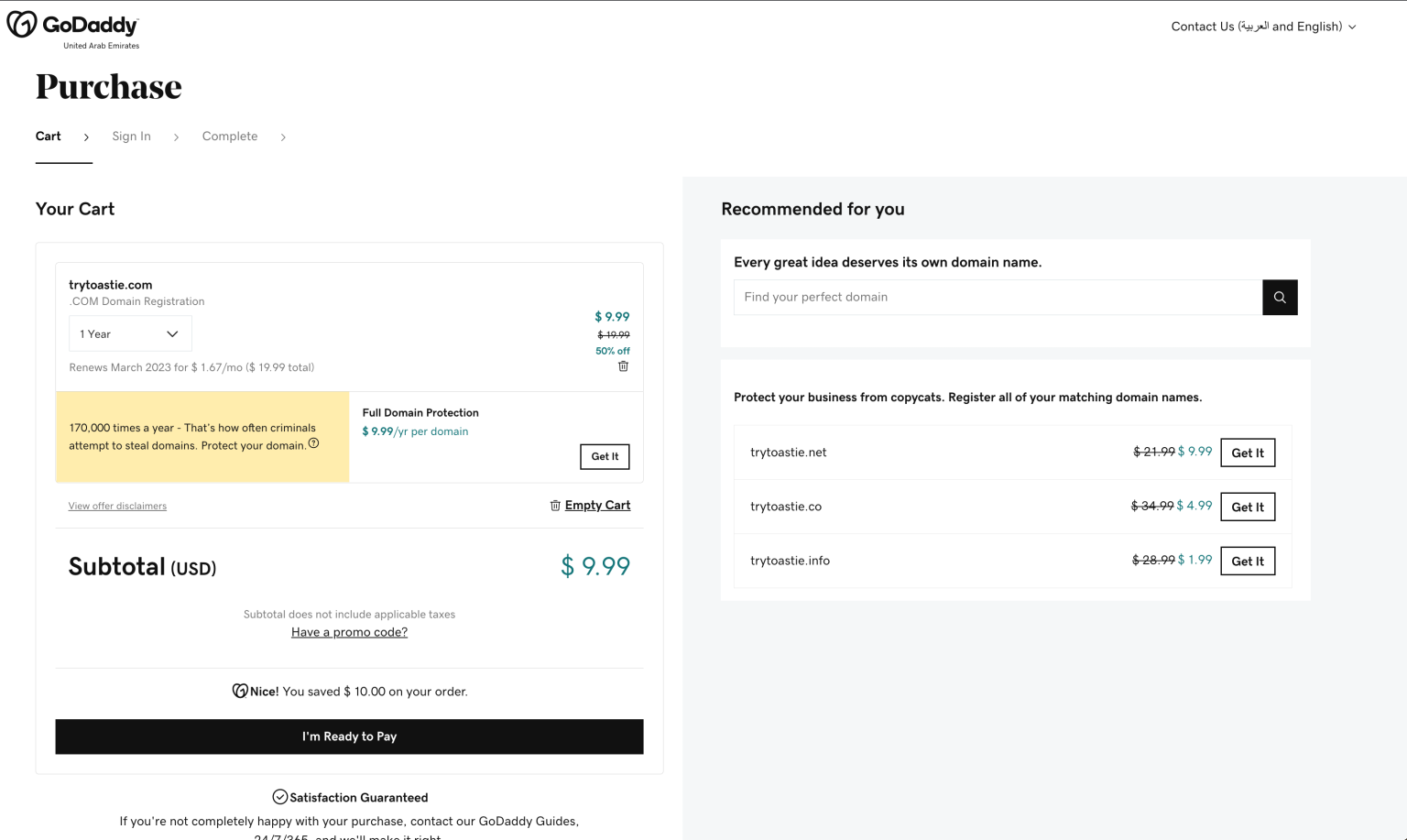
Cart Page – Godaddy.com
- Click “I’m Ready to Pay.”
- You will be asked to ‘Create an Account’ use the most appropriate method to you; I will use ‘Continue with Email.’
- Add your credit card information, Hit complete purchase, and now own the Domain name you chose
The next thing we want to do, and I’ll explain why later, is to do this crucial step
Domain Nameservers Configuration
Make sure you’re logged in to your Godaddy.com and then Go to this page within your Godaddy account.
Option: copy and paste it in your browser search bar: https://dcc.godaddy.com/domains
This is what the page looks like as I am writing this tutorial
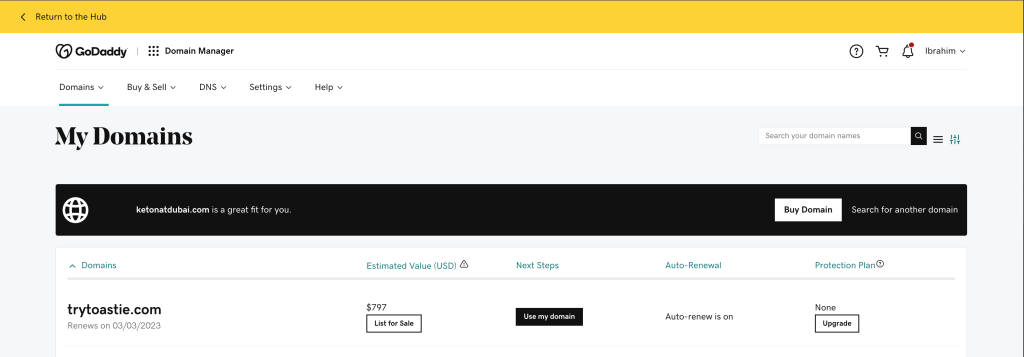
Domains Page (Godaddy.com)
Click the domain name and scroll down to “Manage DNS” (If you can’t find it use the search function – on MAC CMD+F / Windows CTRL+F and type ‘Manage DNS.’
- Click ‘Manage DNS’
- Scroll down and Find the “Nameservers” tab – Example below
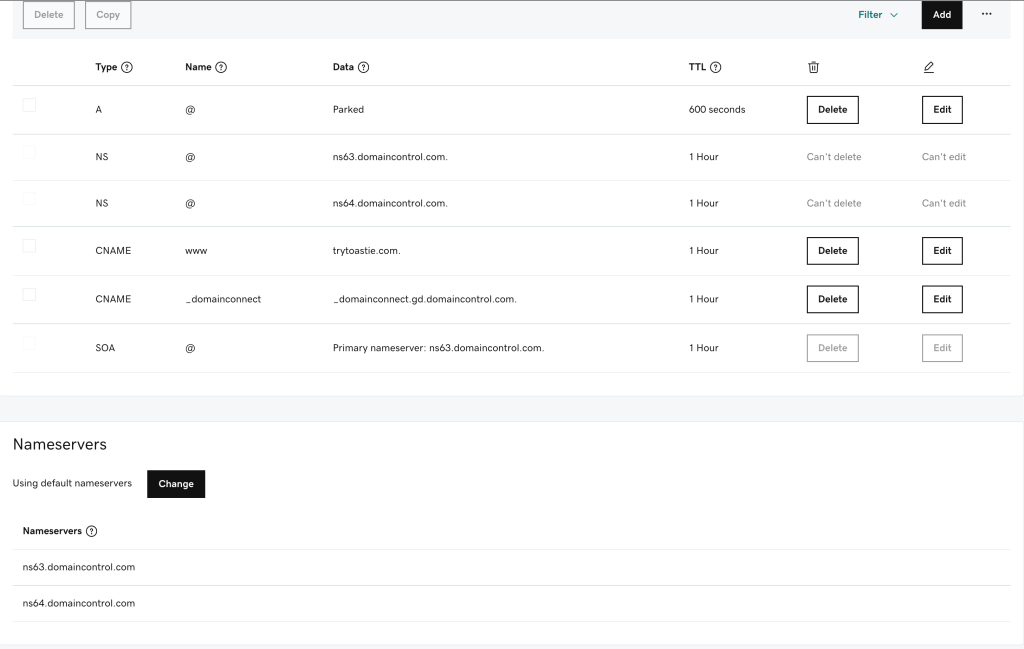
Domain Configuration Page
- Click “Change”
- This popup will open up
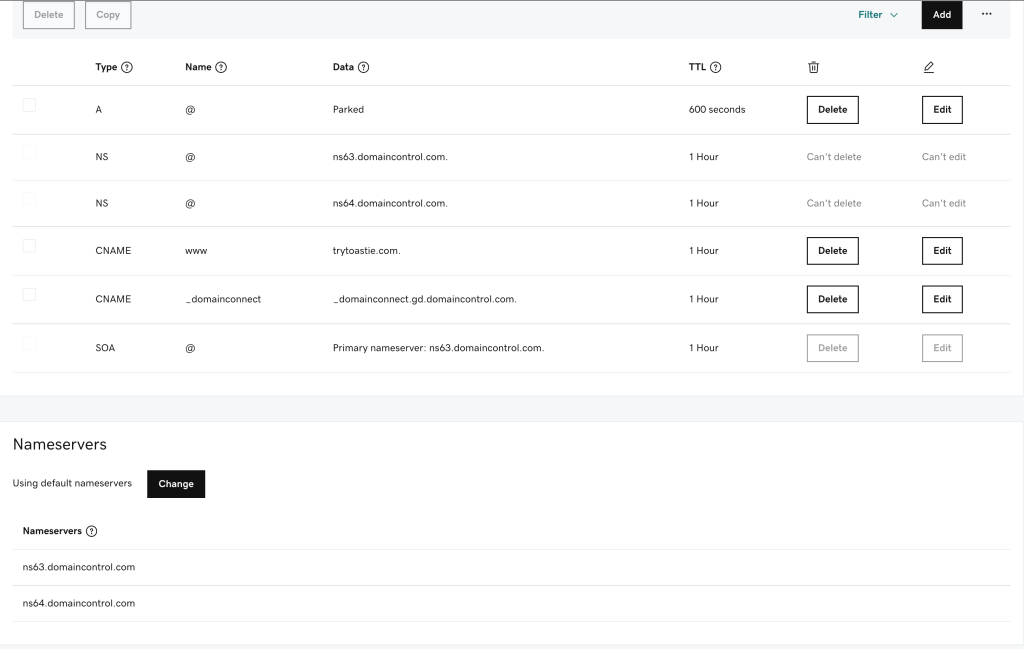
Popup (#1)
- Click “Enter my own nameservers (advanced)”
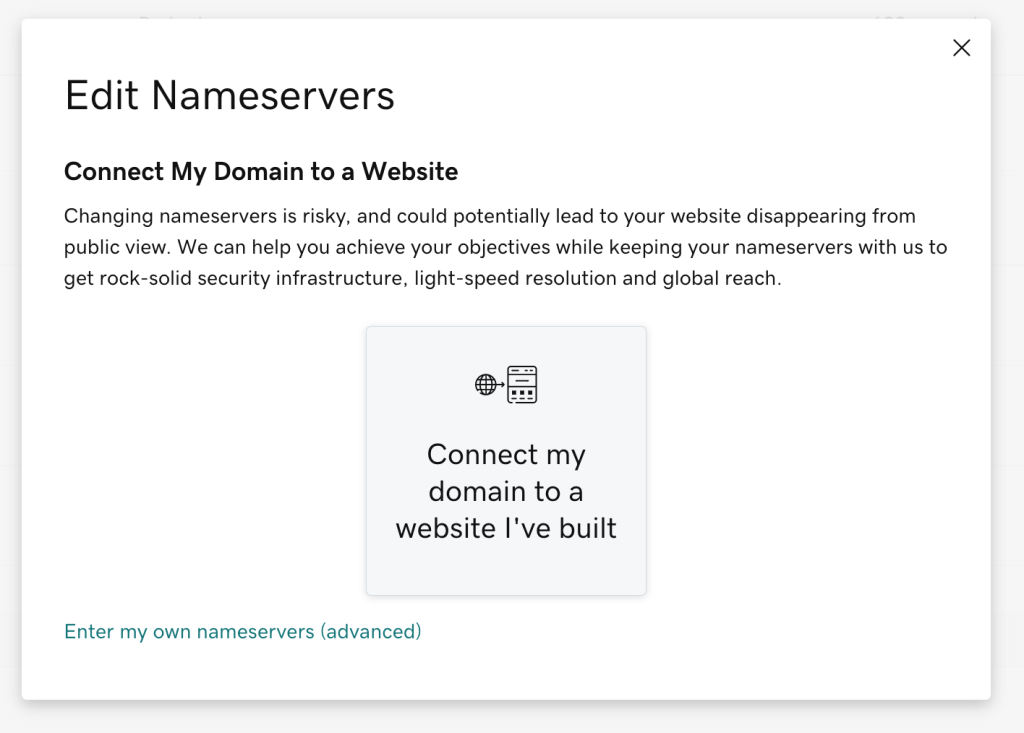
Popup (#2)
Enter the values in the fields as shown above or copy and paste the following
- ns1.digitalocean.com
- ns2.digitalocean.com
- ns3.digitalocean.com
- Then click ‘Save’
There are two reasons why we’re doing this at this stage.
- Connect the domain with (DigitalOcean.com) the host we’ll set up in the next step
- Allow some time for our domain propagation process to take place, which usually takes a few minutes upto 48hrs
Hosting Service
The easiest and most straightforward way to host your website on servers that are scalable and do not require an upfront payment is DigitalOcean.com; I’ve been using this service for almost six years now, and since then, I’ve never looked anywhere else. Just personal preference.
As I explained earlier, using the simple building terms, this hosting server will be your virtual Land, putting your address (Domain name) online.
Create an account at DigitalOcean.com to get started.
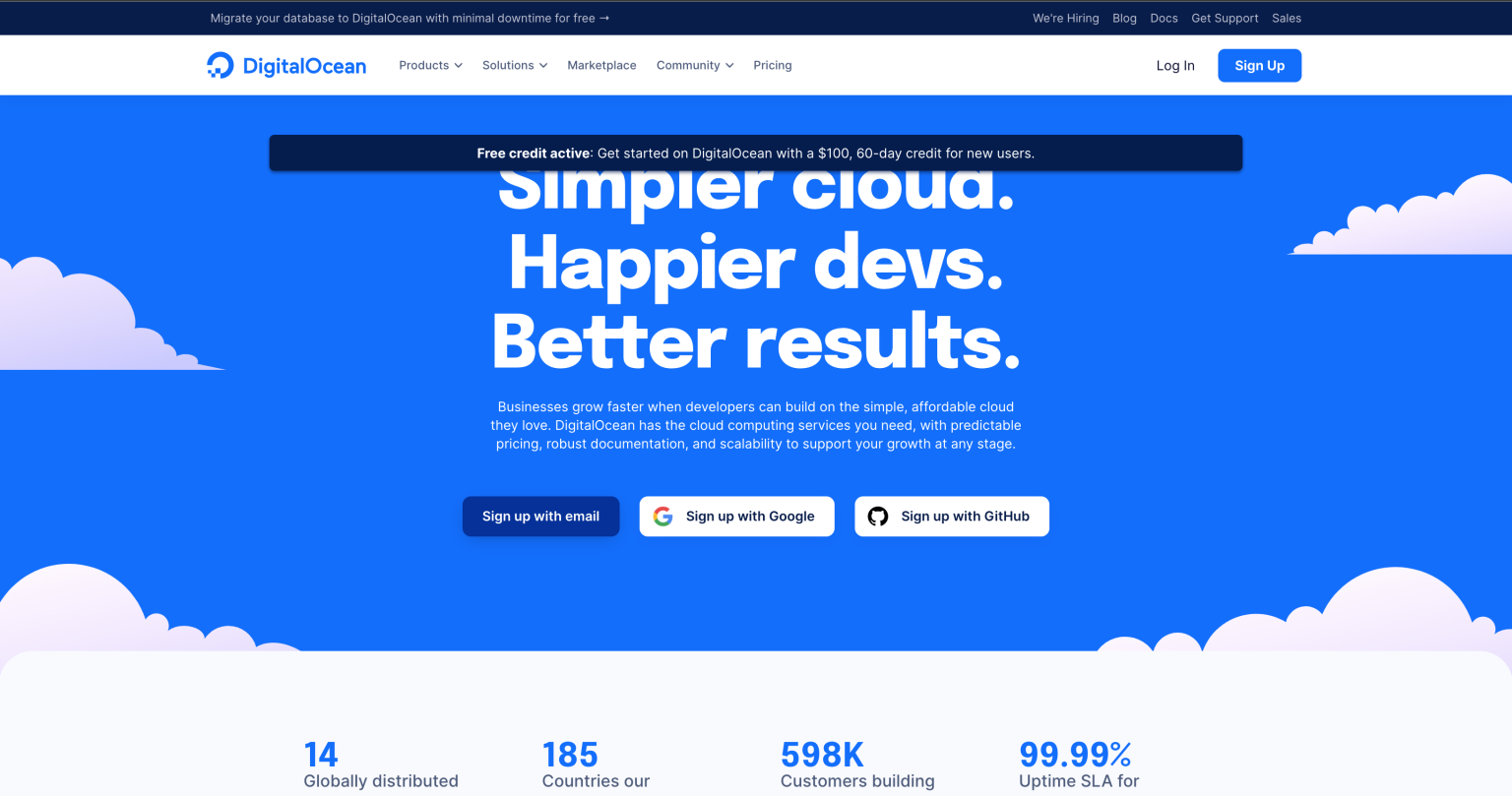
DigitalOcean – Offer Page
You may sign up with the option you’re comfortable with
You’ll be prompted to signup using your most used email because they will be sending you a 2-factor authentication email whenever you try to log in
Next, you’ll be asked to enter your Credit Card information, and DigitalOcean shall not charge you anything at this stage until your two months have passed / or your account used up the $100 before the two months.
Once you’re done creating your account and your credit card information is accepted, you can now add your domain name and create a server (Droplet) in DigitalOcean.
Cloud Server (Droplet) & One-click install WordPress
Use the green button located at the top right of the page “Create,” click it below.
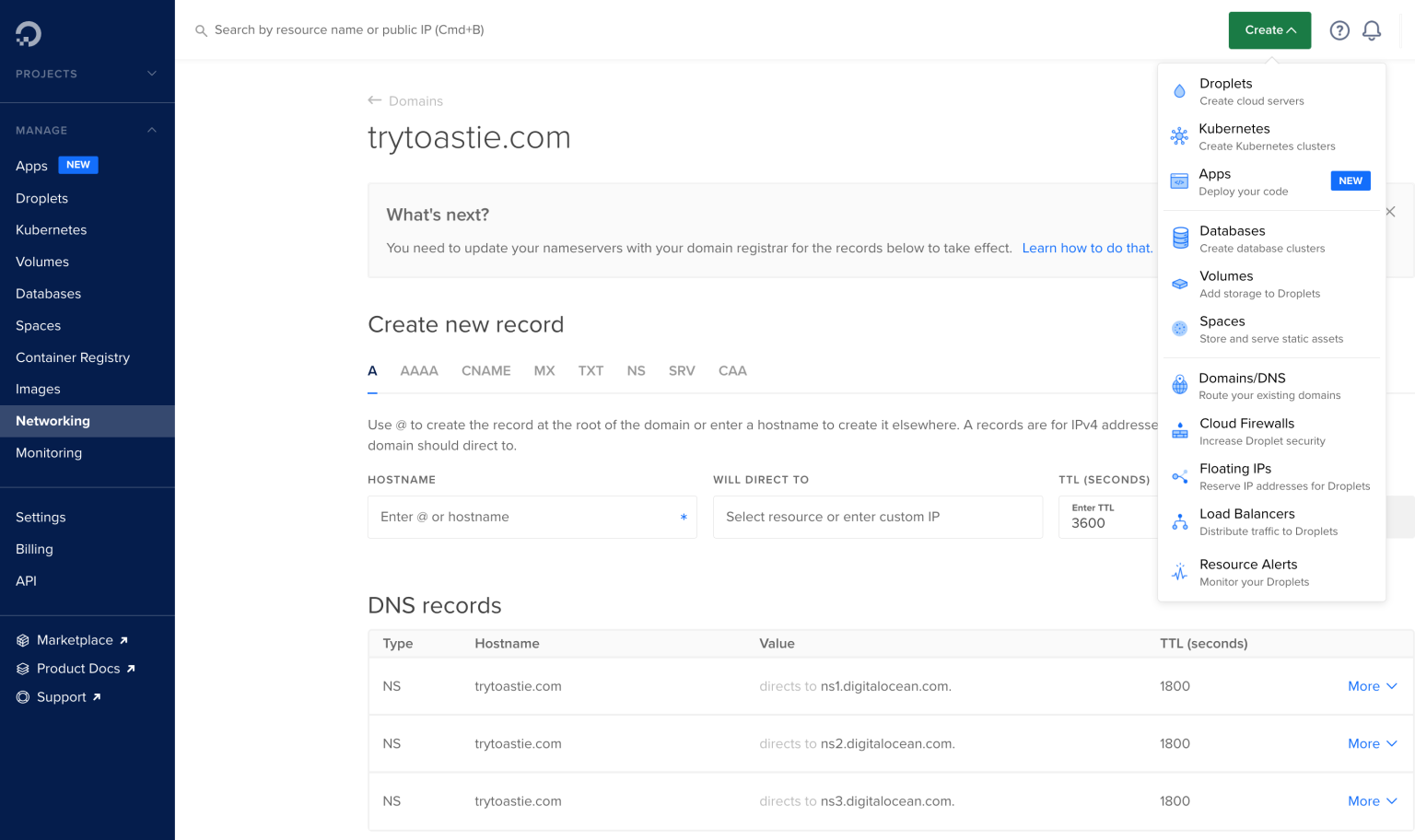
Create button (DigitalOcean.com)
Then click Droplets (Create cloud servers)
This page shows a range of options to choose from; you can select different types of servers.
For the sake of this tutorial
- Navigate to the ‘Marketplace’ tab
- and type ‘Openlitespeed WordPress‘ to build a blazing-fast WordPress
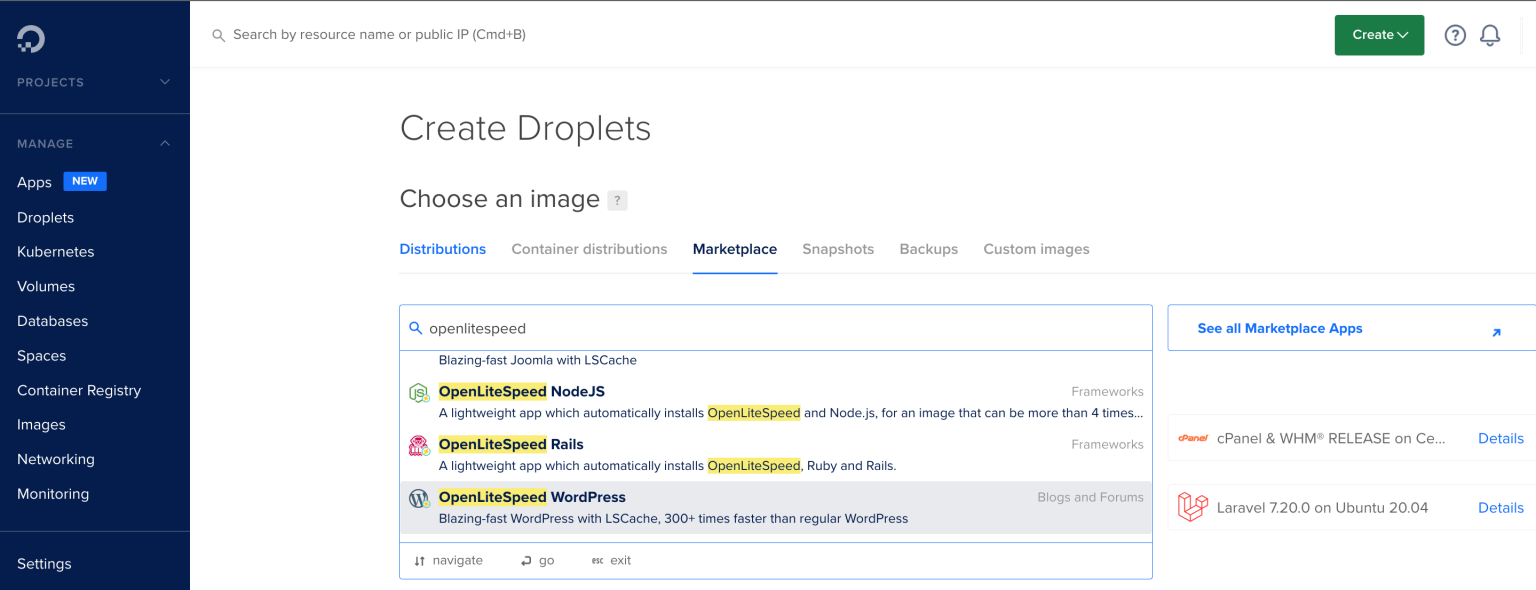
Marketplace tab & Search for Openlitespeed WordPress (DigitalOcean.com) – Creating a droplet
- Make sure the ‘Openlitespeed WordPress‘ is selected
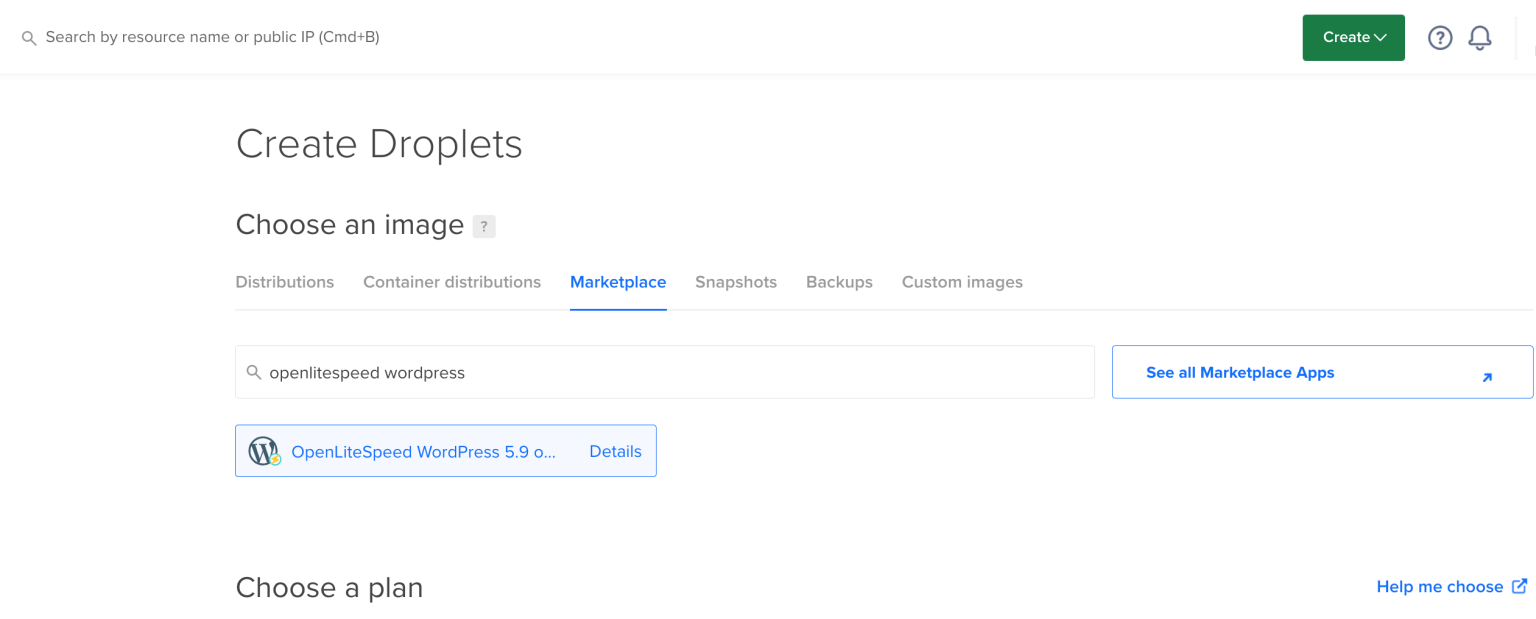
How Openlitespeed WordPress selected looks like (DigitalOcean.com)
- Then Scroll down, where you see chose a plan and select “Basic Plan” as shown below
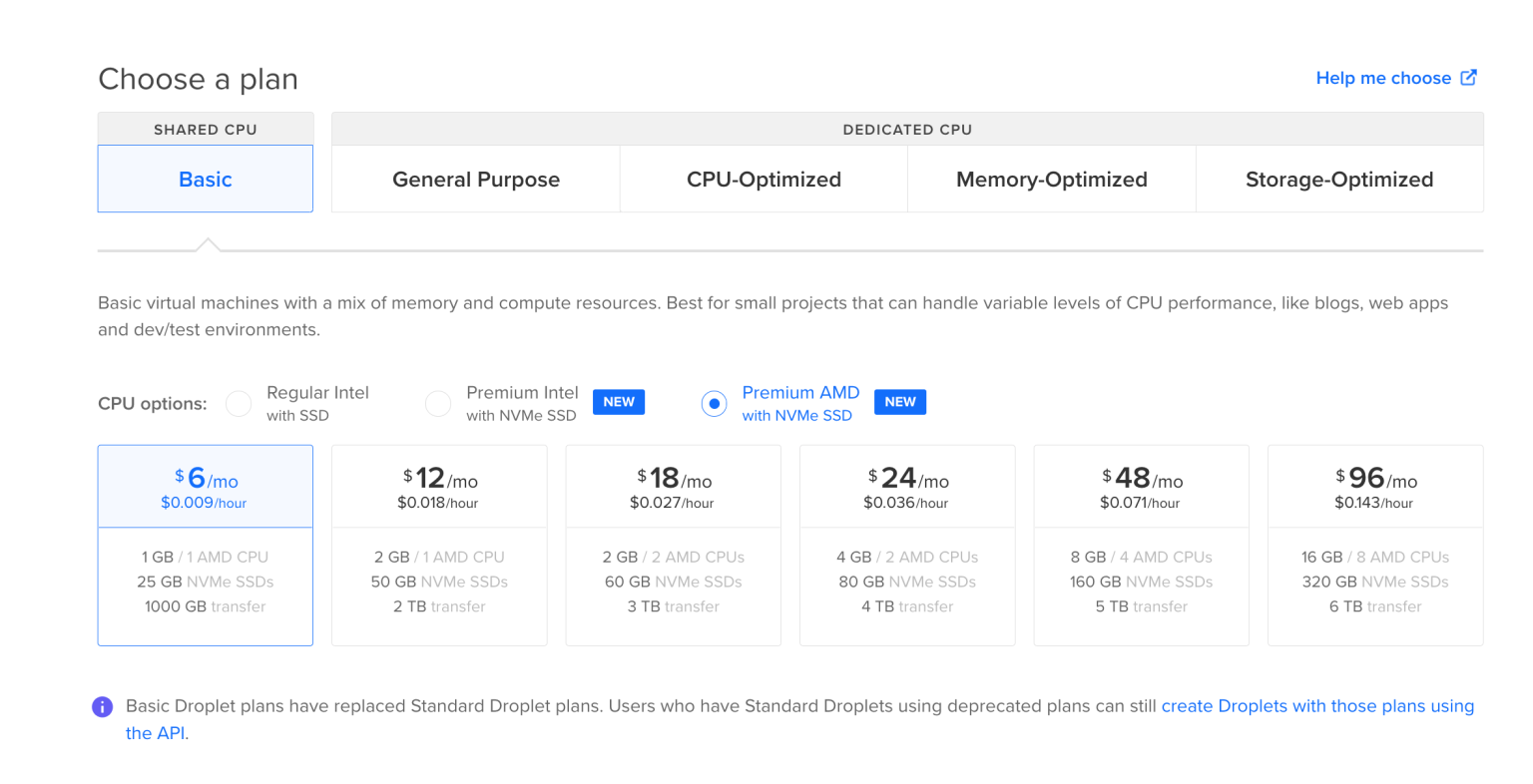
Choose a Plan & Pice (DigitalOcean.com) – Creating a droplet
- CPU Options: Select $6/mo
- Choose a data center region of your choice
- Create root password (You should type a challenging password here and store it in a safe TEXT file – This is your server password)
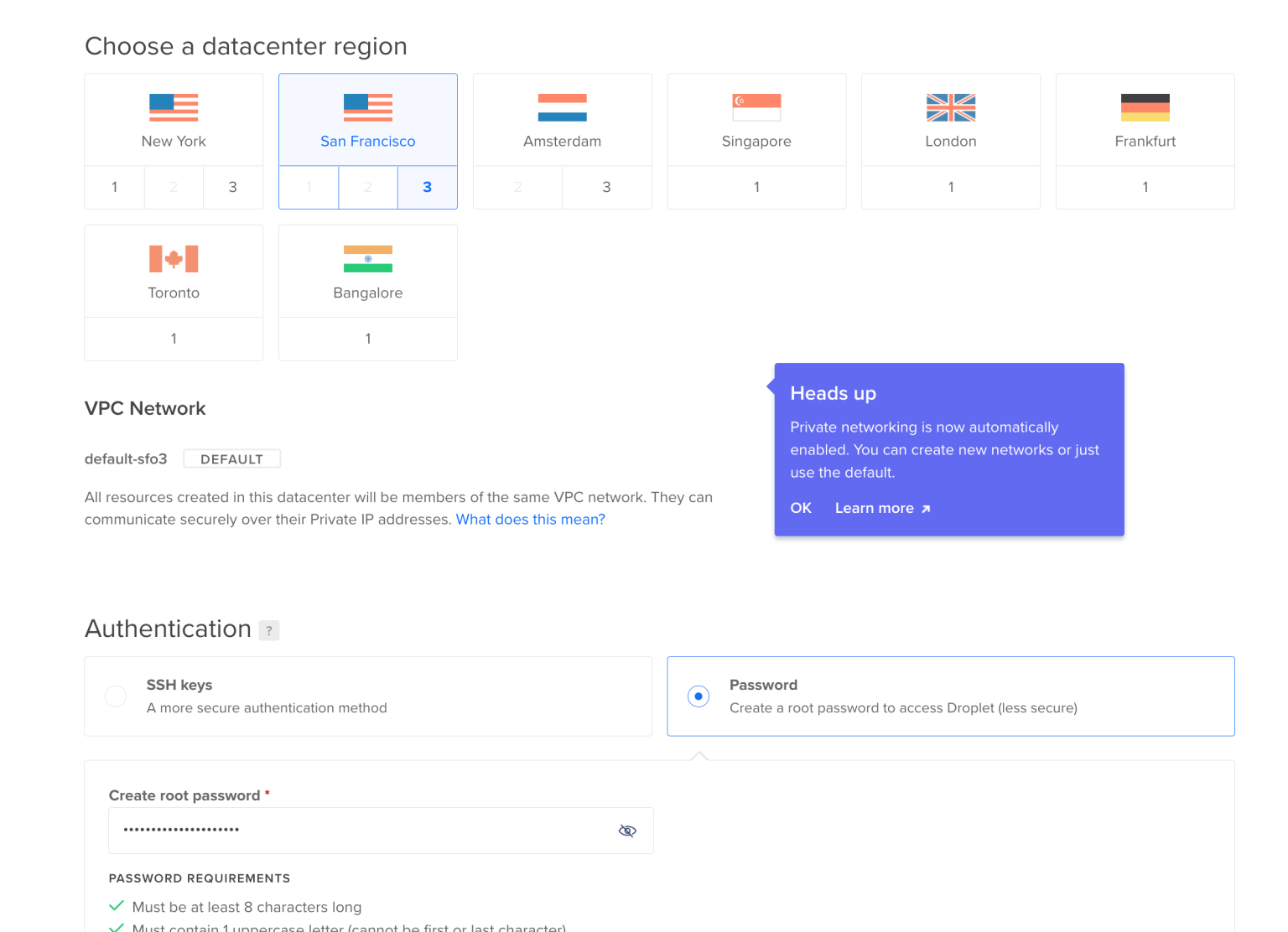
Choose a datacenter region (DigitalOcean.com) – Creating a droplet
- Scroll down, Choose a hostname – In my case I prefer to enter trytoastie as my hostname – delete what’s written and type any name you like.
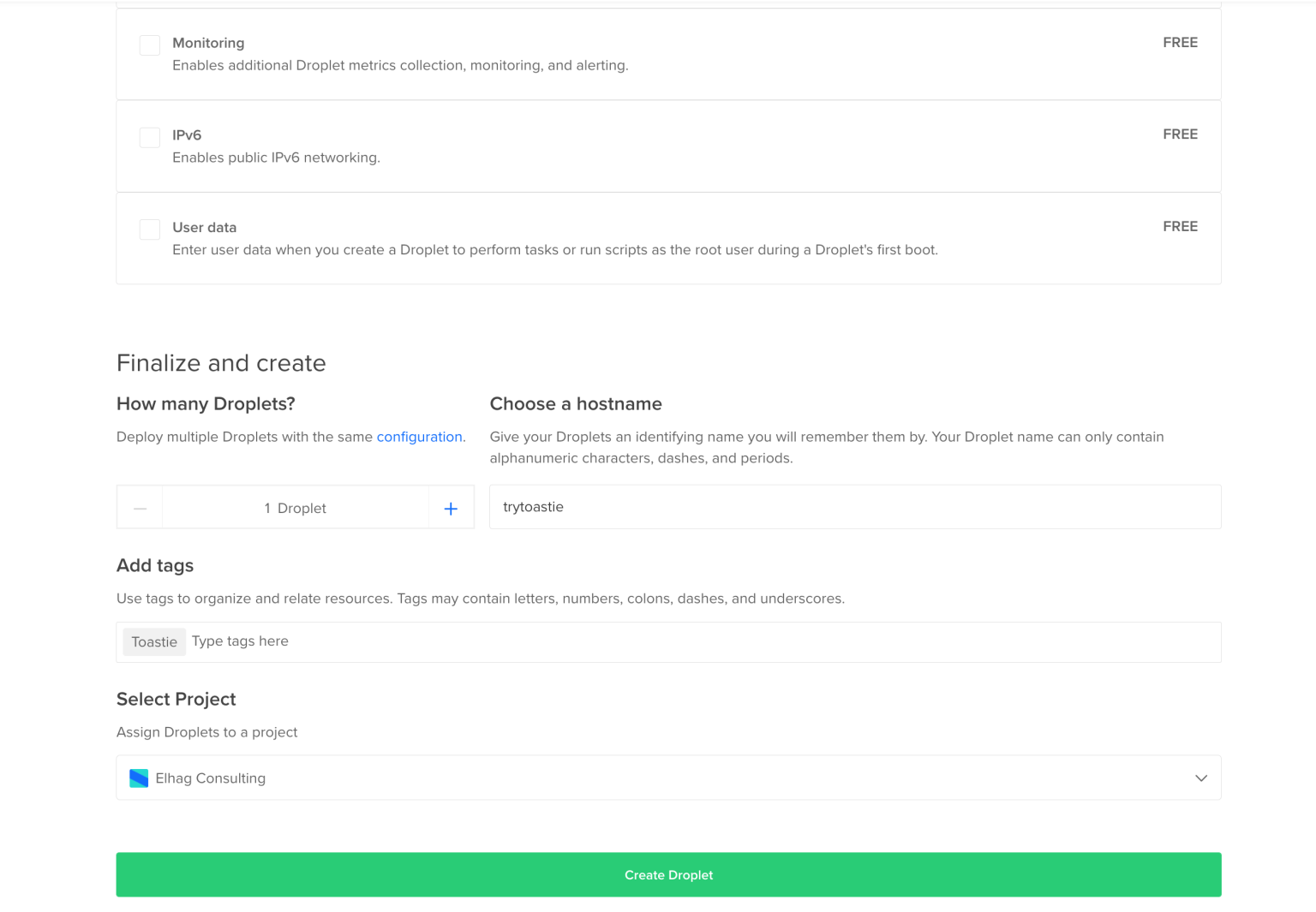
Choose a hostname and optionally add tags (DigitalOcean.com) – Creating a droplet
- Finally, click Create Droplet
Wait A few seconds until creating the droplet process is complete
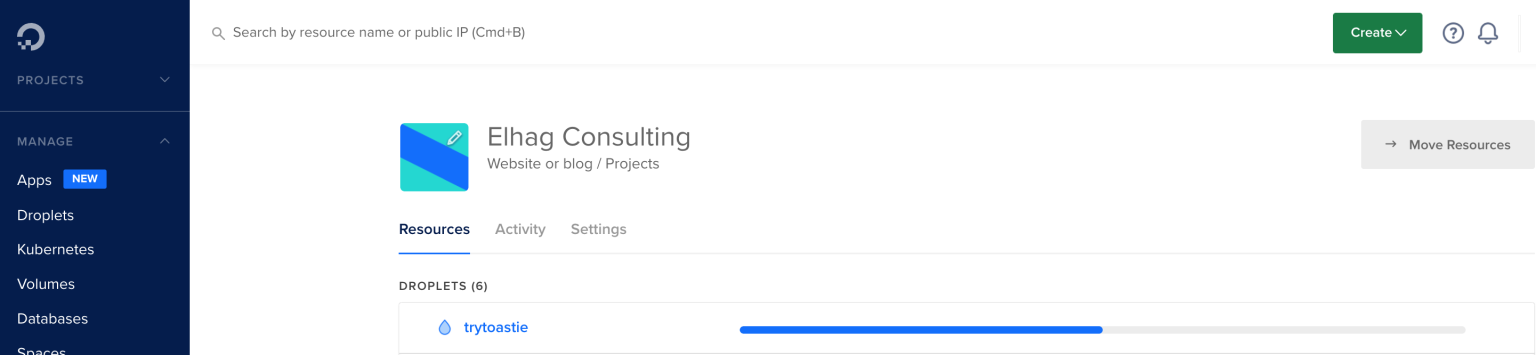
Droplet creation in progress (Digitalocean.com)
Once this step is complete, you’ll see an IP address; mine is (164.92.72.188)
We’re almost there; if you’re still following this tutorial, you’re doing great. Just keep going
Domain Name Migration
Next, let’s connect the domain to your DigitalOcean account
Navigate to this page
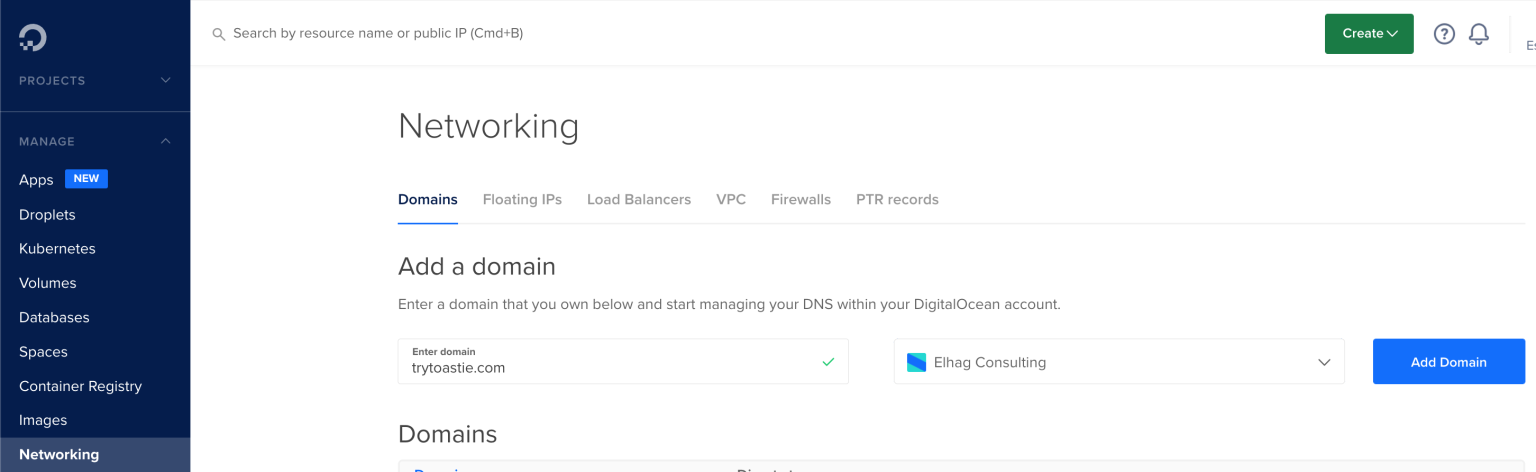
Networking Page Screenshot (DigitalOcean.com) adding the domain name
In the **Domains tab, add your domain name. As you see in my case, I will add ** trytoastie.com and then click ‘ Add Domain‘
Now, we’ll need to connect the domain name with the server we just created
- Enter ‘@’ in the ‘HOSTNAME’ field (Note: remove the ‘ from the @’ I just typed it to emphasize the symbol)
- Click on the ‘WILL DIRECT TO’ field, and you’ll see your droplet name pops up as below
Connect your Domain with your Droplet (DigitalOcean.com)
- Then click ‘Create Record’
At this point, and of course, if you’re following along with me, you’ve accomplished the following
- You’ve registered your domain name with Godaddy.com
- Changed the nameservers to be hosted in DigitalOcean.com
- Created an account with DigitalOcean and claimed your $100 credit & 2-Free months
- Created your cloud server (Droplet)
- and connect your domain name with your cloud server (Droplet)
To finish setting up the website, you’ll need to do this step, which will also ensure your website is secured with Secured Socket Layer (SSL) and your WordPress installation is done properly
Setting up your website security with LetsEncrypt
Now we’ll need to access our cloud server to
- Finish setting up the hosting server
- Connect the domain with the installed WordPress Software
- Generate an SSL (Security Socket Layer) to secure our hosting server
To do that, we’ll use the easiest way to access the cloud server from DigitalOcean.com Console.
- Navigate to the Droplets section as below
- Then click on the droplet name, in my case, I will click on TryToastie
- Below the Droplet name you’ll notice a thin bar that has the IP Address and other values, by the right side you’ll see ‘Console’
- Click Console and a black screen will popup and access your websites cloud server

The first thing you’ll need to do is, type your domain name in my case I will type ‘trytoastie.com’ and hit ‘Enter’ as below
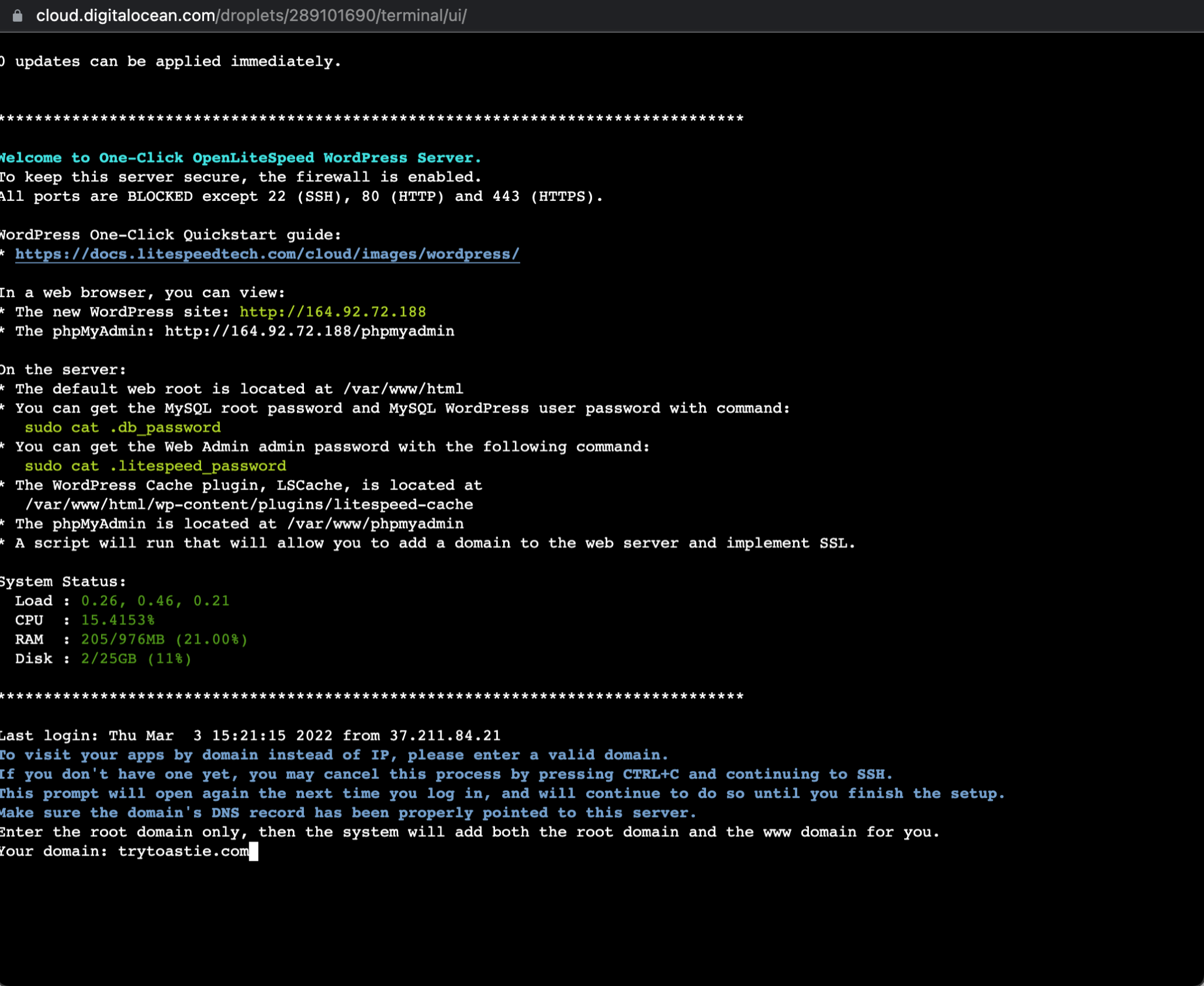
Accessing the cloud server (DigitalOcean.com)
You’ll be asked to verify type ‘Y’ and hit enter
Then this output will appear on the screen
Domain has been added into OpenLiteSpeed listener.
Continue by typing ‘Y’ and Enter every time the server responds with a question until everything is complete.
You may now close this window and, using your browser, go to your website domain.
In my case, I will go to trytoastie.com as below.
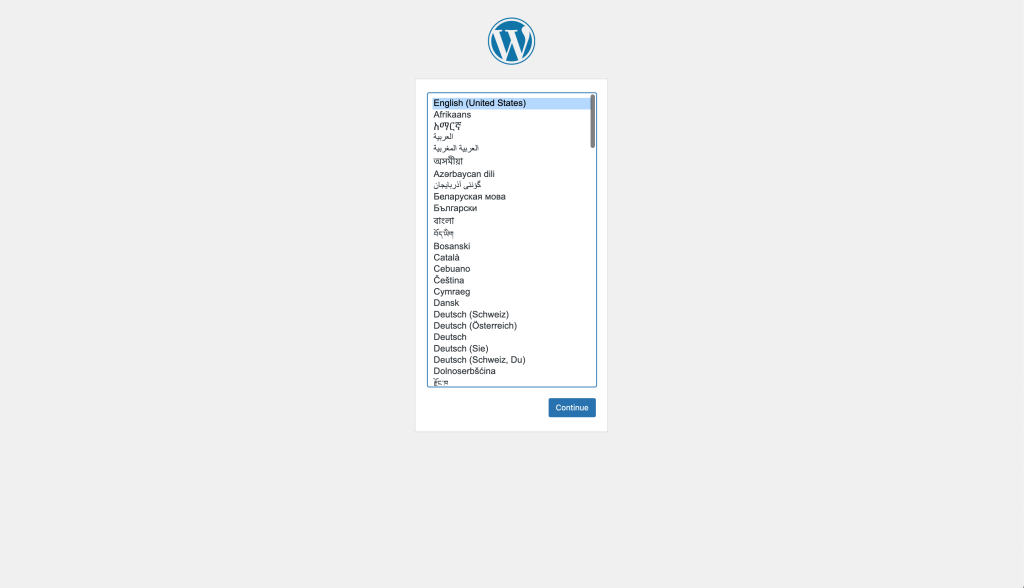
Your WordPress installation
Let’s finish our website setup by following the next steps
- Select English (United States) and click ‘Continue’
- Write your Blog details
- Create a Username and Password to access your WordPress
And you’re done! I hope you enjoyed this tutorial
The next step is to design your website or blog.